Filters
Filters can be used to block or allow a signal based on the signal’s activator. Filters are like the bouncer at a nightclub, they only allow an activator on the list to pass.
Filter Types
 | AI Filter | Use this filter to define a specific AI pattern. |
 | Boolean Filter | The signal will continue only if the Boolean is true. |
 | Cached Object Filter | The signal will continue only if the activator matches the cached object. |
 | Droppable Filter | Use this filter to define a Droppable pattern. |
 | Equipment Filter | Use this filter to define a specific equipment pattern. |
 | Module Filter | Use this filter to define a module pattern. |
 | Player Filter | Use this filter to define a specific player pattern. |
 | Race Filter | Use this filter to define a specific race pattern. |
 | Team Filter | Use this filter to define a specific team pattern. |
 | Custom filter | Add filters to the Custom Filter to define the who, what and where. Use the Custom Filter by name or place it between an output and an input. |
 | Volume Filter | Use this filter to define a specific volume pattern. |
 | Weapon Filter | Use this filter to define a specific weapon pattern. |
Adding a Filter to a Logic Chain
When creating a map, I want to add a teleporter back to the Team 1 base. I want to limit which team can use the teleporter. After adding a Teleporter Pad and a Teleport Destination, I can add a filter in the middle of the logic chain so that only Team 1 can use the teleporter.
Hover over the logic chain between the On Entered output and the Teleport To input. The chain will turn orange.
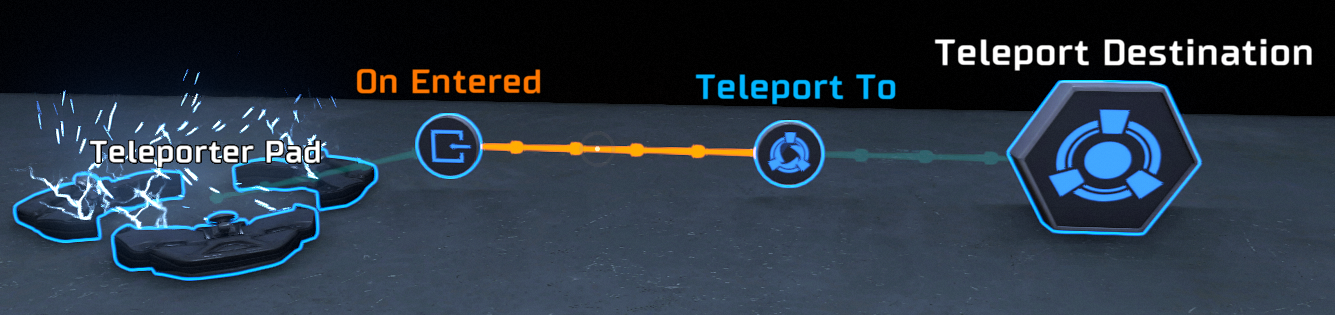
Hold down the Options button and select Add Filter. On PC, the default keys are LEFT CTRL + G. On XBOX One, the default buttons are LT + A. ON PS4, the default buttons are LT + X. From the Filters selection menu, pick the Team Filter.
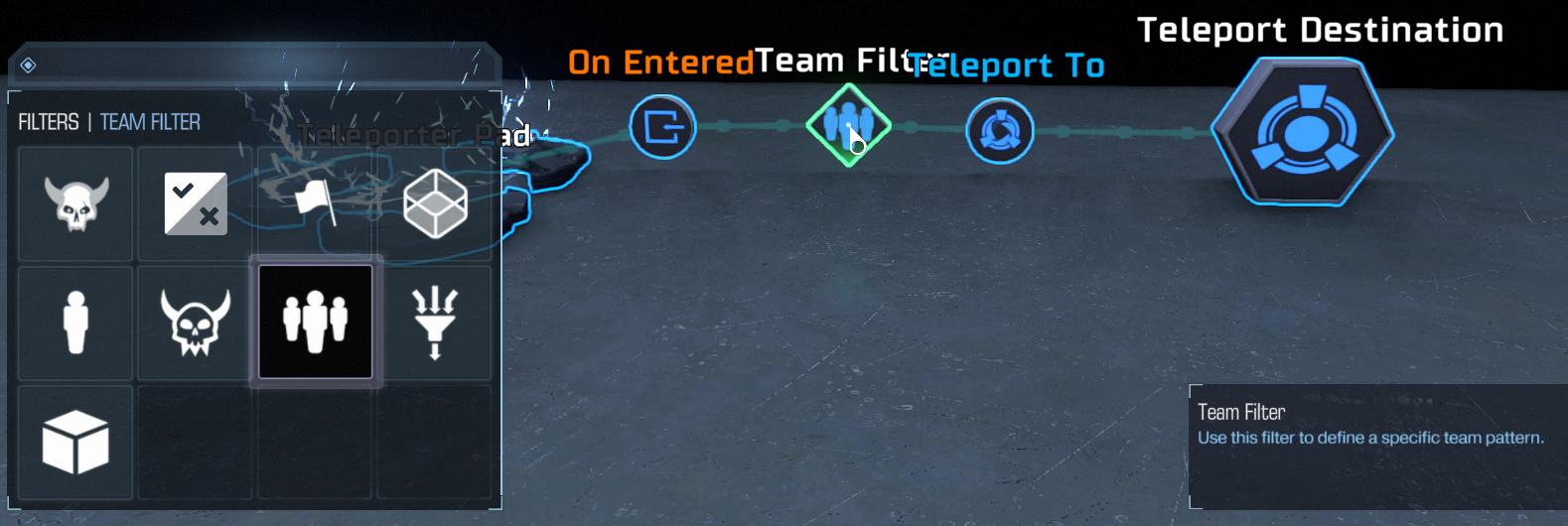
This will add a diamond-shaped object to your logic chain. Open the Team Filter properties. Set the Team you want to allow to true, set all the teams you want to block to false. In this case, only Team 1 will be allowed to use the teleporter.
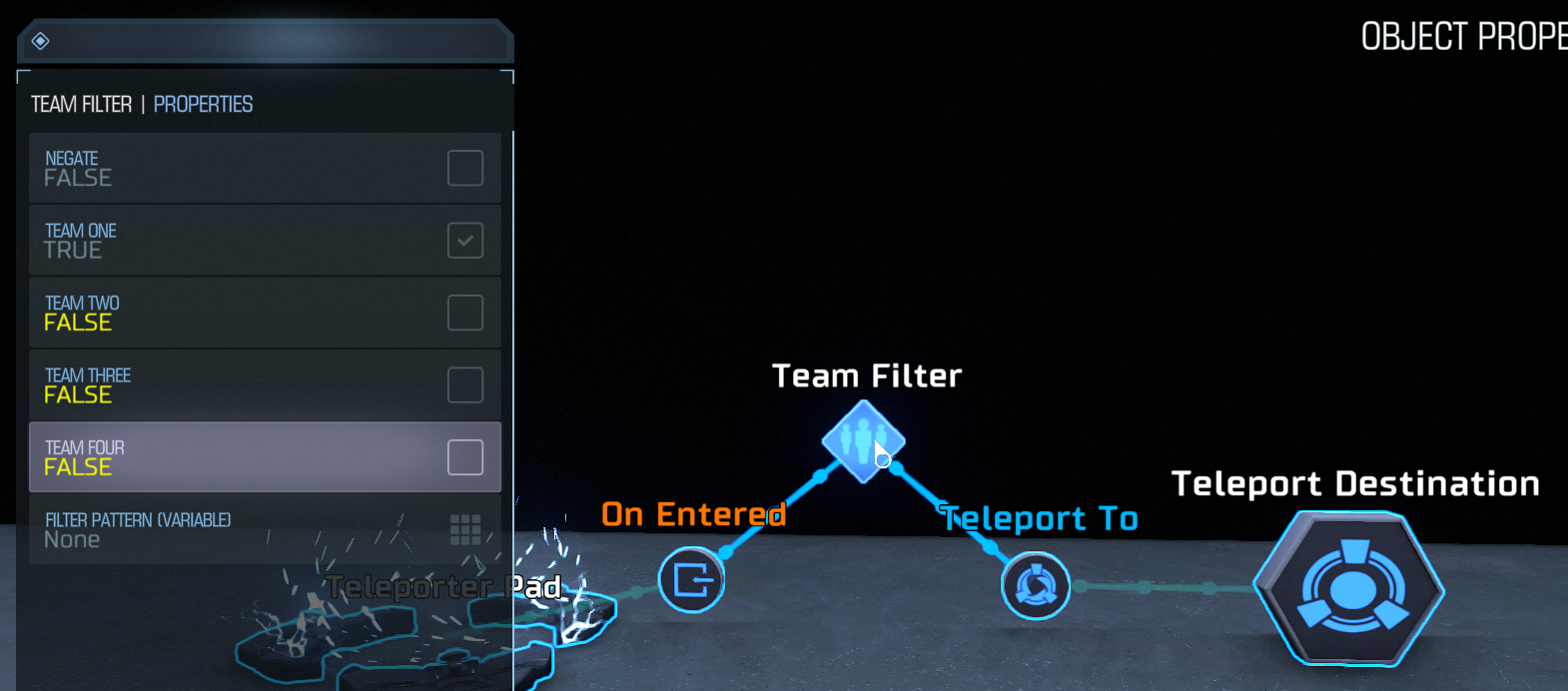
In some cases, you might want to negate your filter. Negating your filter makes it do exactly the opposite. In our example, Team 1 will be blocked and all the other teams will be allowed.
Adding a Filter to a Property
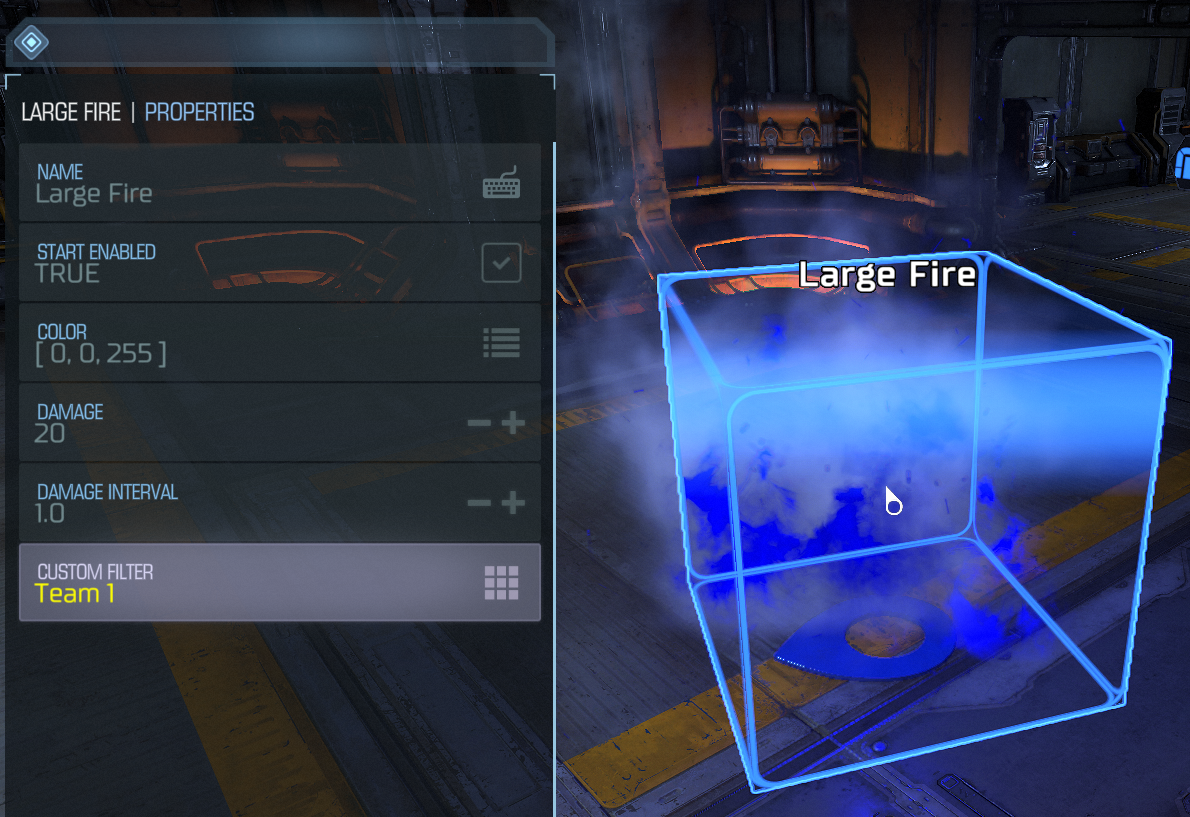
Some objects, like FX and volumes, have a Filter property that can be used to limit who can interact with the object. This property provides some basic filters for you to pick from. In this example, the blue Large Fire will only damage players on Team 1.