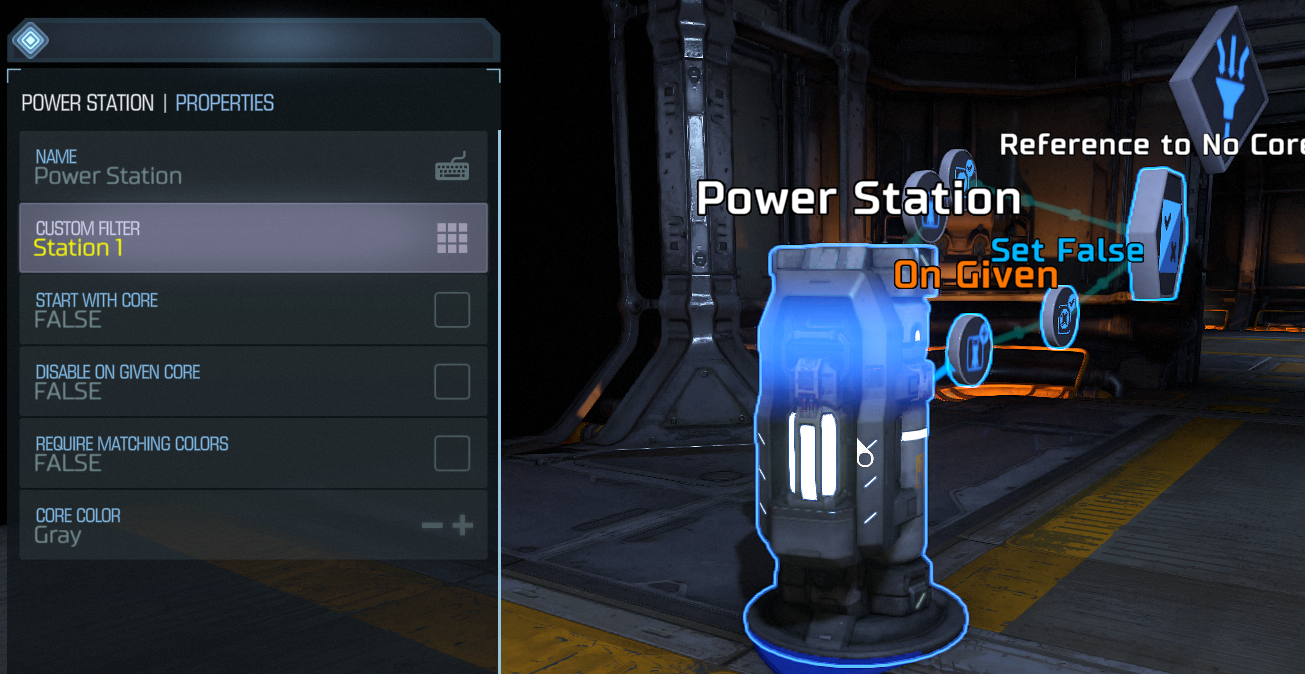
Custom Filter
Add filters to the Custom Filter to define the who, what and where. Use the Custom Filter by name or place it between an output and an input.
Inputs
None
Outputs
The custom filter outputs are not traditional outputs. You can add filters to a Custom Filter. Each filter will layer so that you can build a complex filter.
Creating a Custom Filter
You can also create much more complex filters such as "All teams except Team 1" or "Player 1 with a Red Keycard" by combining filters together in a Custom Filter. Custom Filters are a variable, and can be used in a logic chain or in an object's property.
Add the Custom Filter object from the Variables Category. In our example, we want the blue Large Fire to damage all players on any team except Team 1. We will call this Custom Filter 'Team 1'.
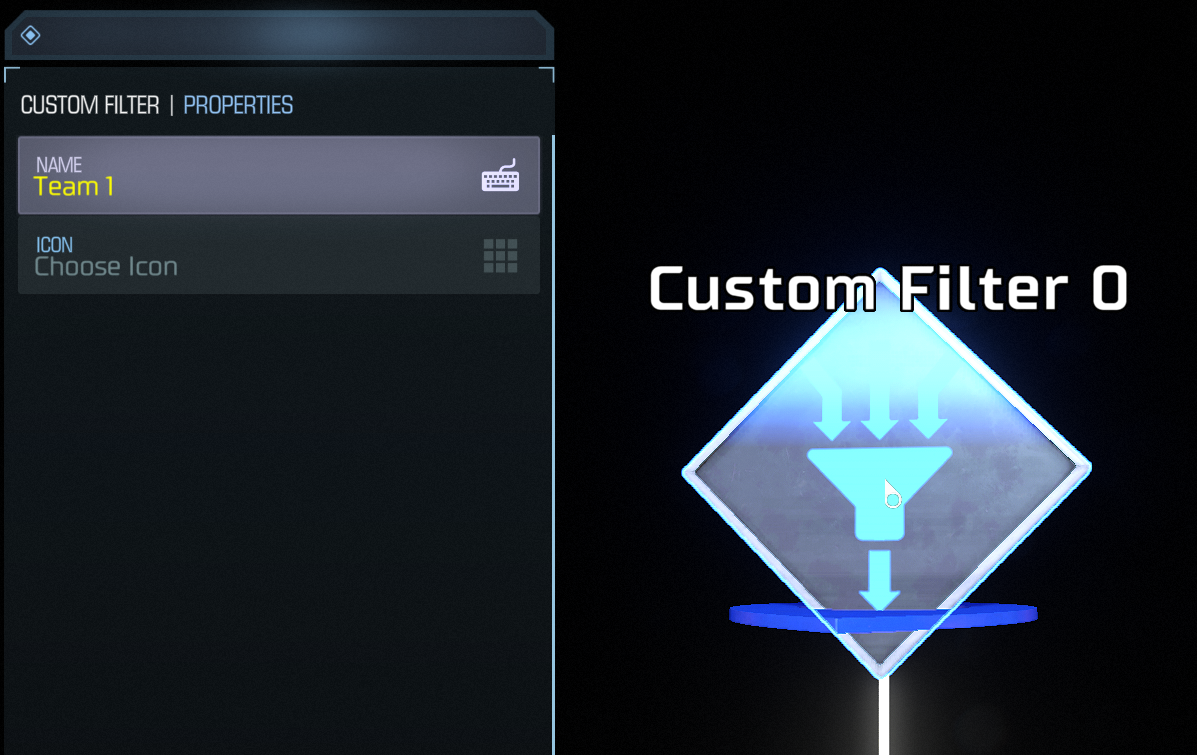
Hover over the Filter object, press the Add button, move the cursor off of the Custom Filter and press Add Filter when the option appears. Select Team Filter from the list. Open the properties for your new Team Filter, and set Team 1 to false.
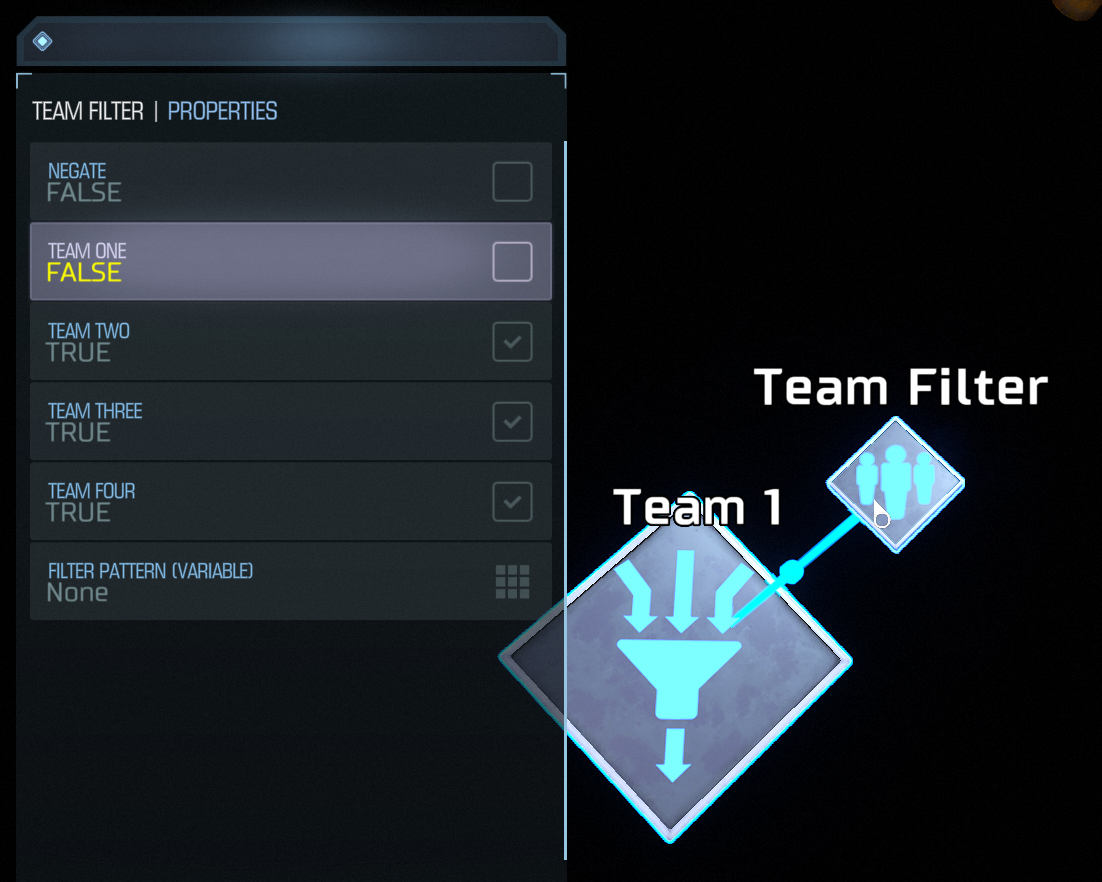
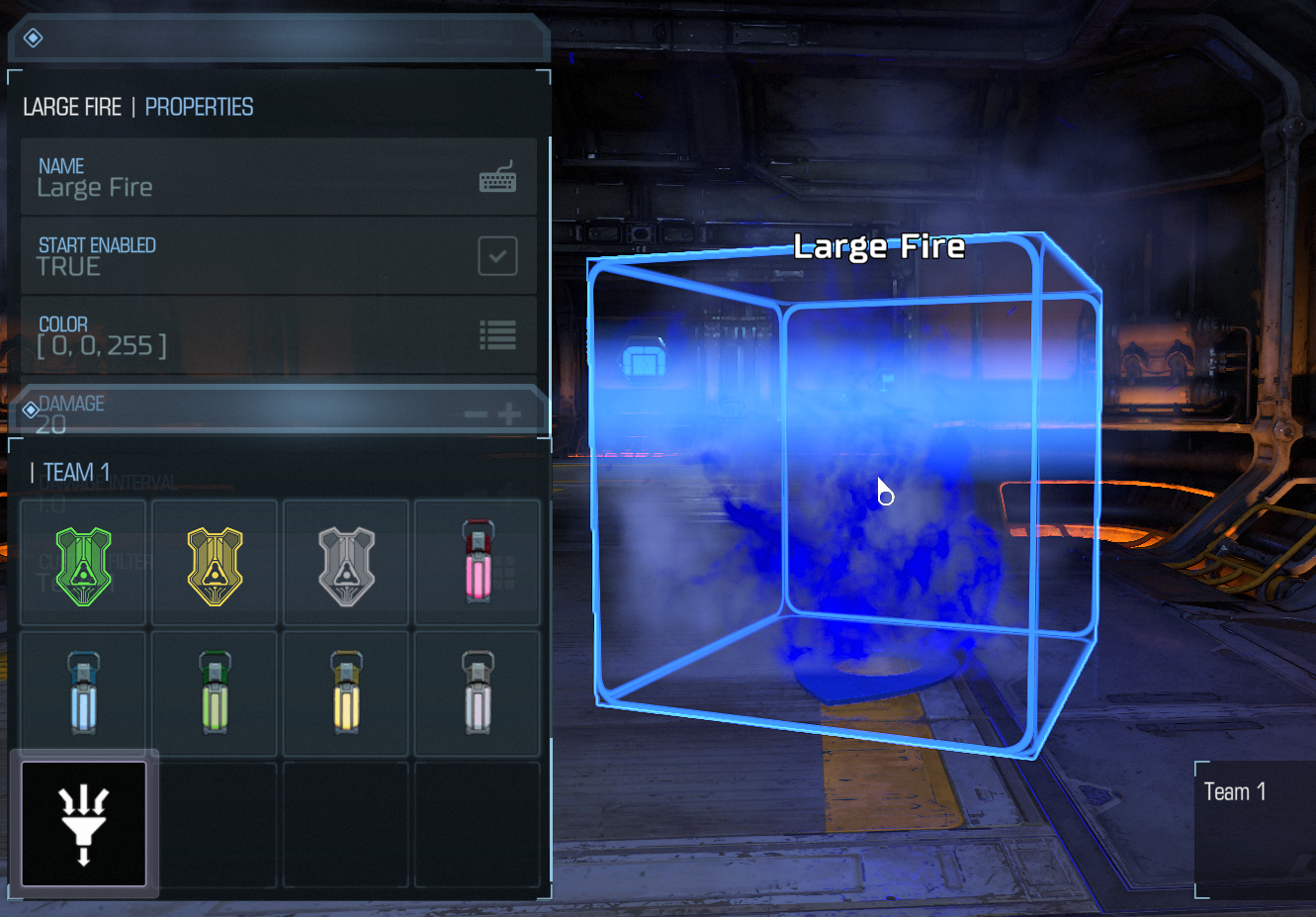
Open the properties on the blue Large Fire. In the Filter property, the new Custom Filter named 'Team 1' should be available at the end of the list. With this custom filter, any player on Teams 2, 3 or 4 will be damaged by the blue Large Fire.
Complex Custom Filters
Multiple filters can be strung together in a branch off of a Custom Filter. Each filter in a branch will be ANDed together, and the branches will then be ORed. These Boolean operations can be used together to create filters that only allow signals to pass under very specific cases.
In this first example (reference map ID 8ZB7YS2L), we want the player to only have one power core at a time. The settings allow us to limit the player to one Power Core of each color, but we'll need a filter to limit the player to one Power Core at a time. In other words, the player should be able to pick up a power core only if they 'don't have a Red Power Core and don't have a Blue Power Core and don't have a Green Power Core'. Create a branch of three Droppable Filters on a Custom Filter. Each Droppable Filter should be Negated and should have a different color Power Core in the properties.
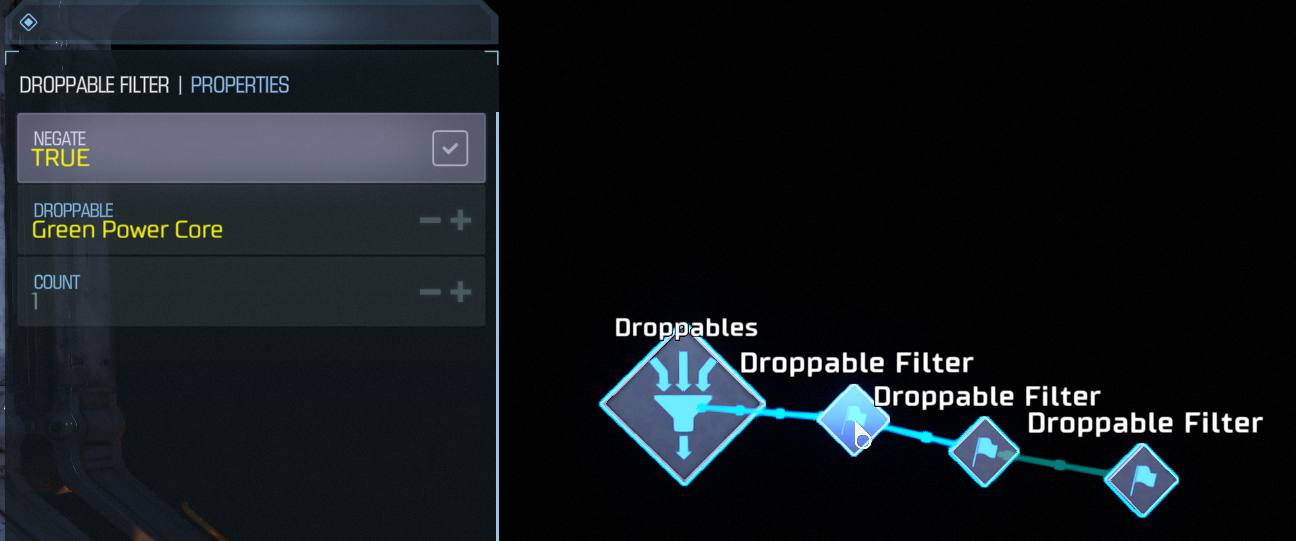
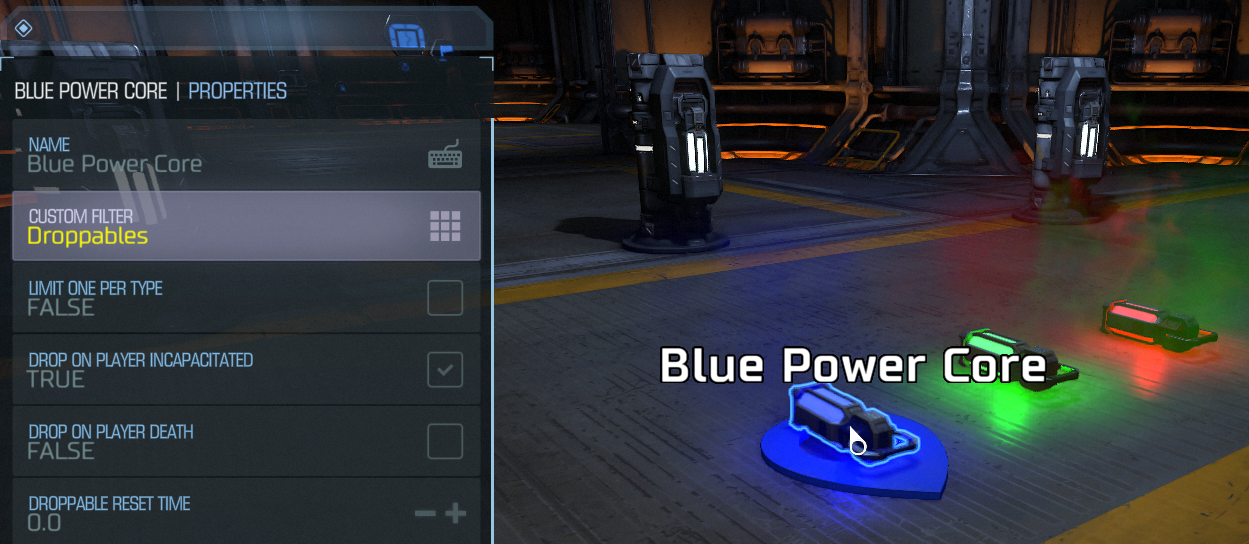
On each placed Power Core or Droppable Spawner, set the Custom Filter (named Droppables in this example). This prevents any player from picking up a Power Core if they already have one of any color.
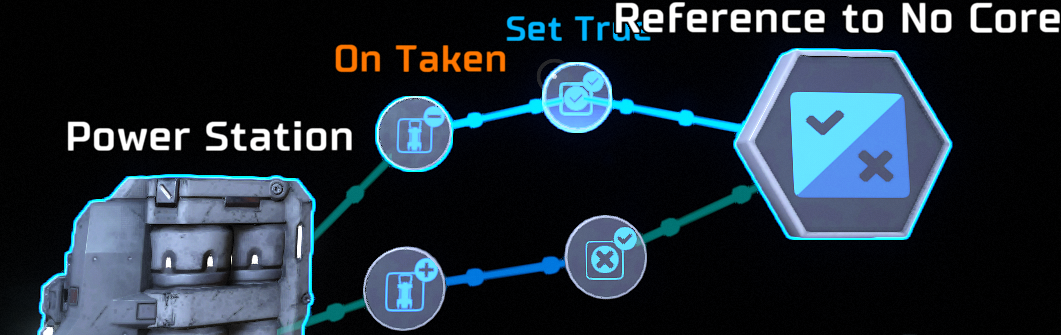
We want to prevent the player from using a Power Station if they are holding a Power Core and the Power Station has a Power Core in it. That is, the player should only be allowed to use a Power Station if the Station has no Power Core in it or if the player has no droppable. We just made a Custom Filter that tests whether a player has no Droppable, and we can use it in another Custom Filter. Since branches can be ORed together, we just need to create a Boolean variable that is true when a Power Station has no core and false when a Power Station has a core.
Create another Custom Filter, this one will be applied to the Power Station. Create a branch with a Boolean Filter set to the variable that tracks whether the station has no core. Create a second branch with a Custom Filter that is the Droppables filter from earlier.
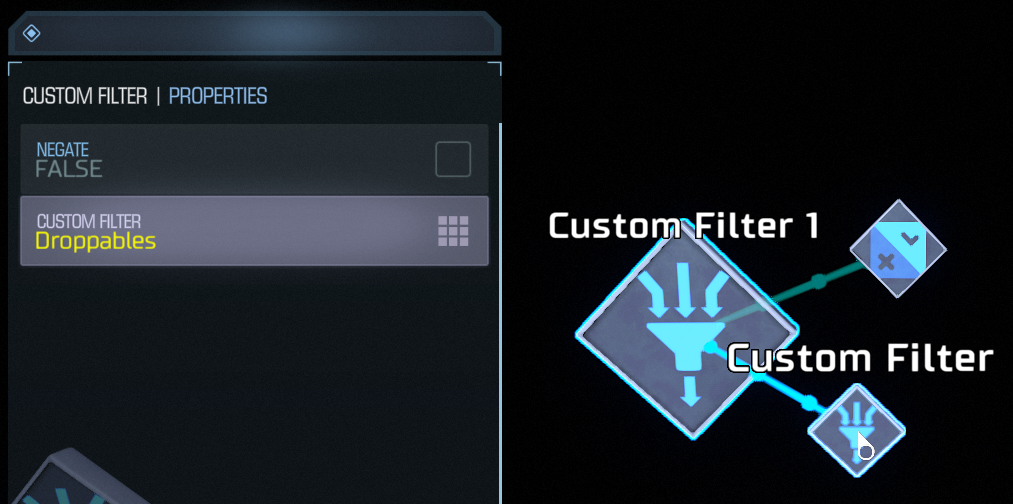
Apply the Custom Filter to the Power Station. Create another Boolean and Custom Filter for each Power Station in the map.